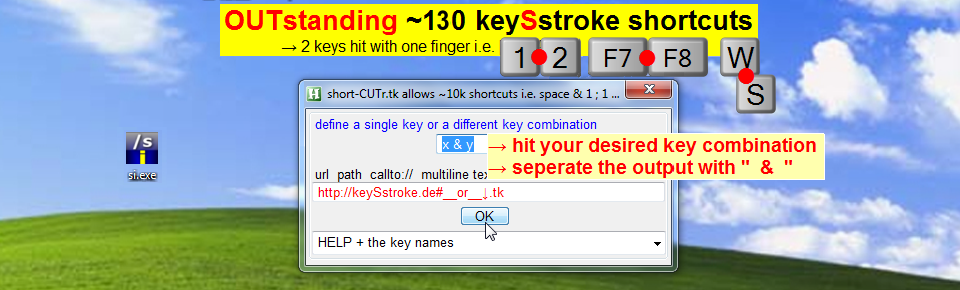
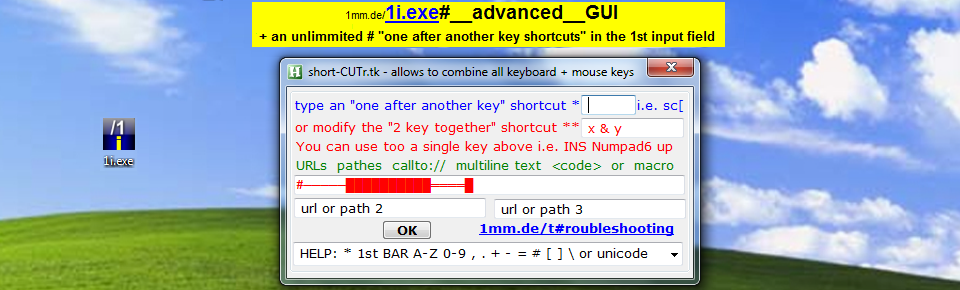
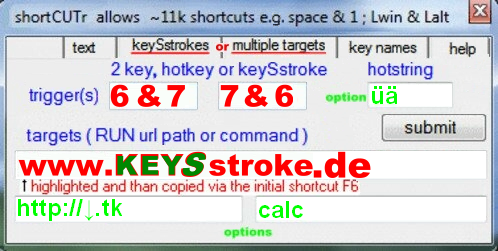
• you can assign up to 3 url's/pathes to the ~25 hotkeys, ~11k 2key shortcuts (incl ~130 KEYSstrokes) + the ∞ hotstrings
• the second tab allows to assign multiline T€XT to hotstrings/abbreviations
• you can combine all keyboard + mouse keys e.g. lbutton & rbutton
• advanced: set up macros @ the end of the "highlight and hit F6.ahk" file
• the app doesn't cause registry changes, so you can use it too on portable devices
move the 2 desktop files and change the target in the "highlight and hit F6.exe.lnk" file e.g. to X:\highlight....
• you can add more functions to the .ahk file → o#ptions → Autohotkey.com/boards
• unicode + idn support
• deactivation: search (WIN + F) for " highlight and hit F6.exe.lnk " and delete the file
• you can open the installers with winrar or open source 7zip
THE code (without the HELP section on top. The ;HELP text doesn´t affect the script performance)
Note: to copy the following code could cause errors, copy better the browser preview, including the help section
#singleinstance force ;; Keep this line who prevents too incompliet shortcuts &:: & ::

;

; © @SeX -_- script/APP based on the Open Source AutoHotKey.com#_project

;

; Version +.exe = i.exe + 3 multiclipboards -_- Copy: ALT+F1 - +F3 -_- Paste: ALT+1 - +3

;

; scroll down to your most recent shortcuts with the PGdown key

;

;########### -_- MULTIMEDIA KEY names -_- ##########

; Browser_Back B._Forward .._Refresh .._Stop .._Search .._Favorites .._home

; Volume_Mute Volume_Down Volume_Up

; Media_Next Media_Prev Media_Stop Media_Play_Pause

; Launch_Mail Launch_Media Launch_App1 Launch_App2

;

;########### NOTE #############

;

; NOTE: the .exe will not load this help section into the ram, so you can keep it.

;

; To exit the APP: rightclick the H tray icon

;

Menu,Tray,NoStandard

Menu,Tray,add,&EDIT your shortcuts after a double click on the H tray icon`; at the bottom of the file,EDIT

Menu,Tray,Default,&EDIT your shortcuts after a double click on the H tray icon`; at the bottom of the file

Menu,Tray,add,&shortCUTr.de -key names -help -tips , x+y

Menu,Tray,add,&exit,exit

return

;

exit:

exitapp

;

EDIT:

Run Notepad %A_ScriptFullPath%

Return

;

x+y: ; = tray menu link

run http://1mm.de

return

;

f6::

AutoTrim Off

ClipboardOld = %ClipboardAll%

Clipboard =

Send ^c

ClipWait 1

if ErrorLevel

return

;

StringReplace, copied, Clipboard, ``, ````, All

StringReplace, copied, copied, `r`n, ``r, All

StringReplace, copied, copied, `n, ``r, All

StringReplace, copied, copied, %A_Tab%, ``t, All

StringReplace, copied, copied, `;, ```;, All

Clipboard = %ClipboardOld%

;

Gui -MaximizeBox -MinimizeBox AlwaysOnTop

Gui Add, Tab2, x-2 y-4 w367 h160, | text | keySstrokes | multiple targets | key names | help

;

Gui Font, s10 cBlue

Gui Add, Text, x20 y21 w234 h23, define a HOTkey i.e. F7 numpad6 ins *

Gui Font, s10 cRed

Gui Add, Text, x9 y41 w33 h23, OR

Gui Font, s10 cBlue

Gui Add, Text, x20 y59 w211 h23 , change the X Y key combination **

Gui Add, Edit, x229 y36 w71 h21 v1, x & y

Gui Add, Edit, x6 y87 w351 h21 v2, %copied%

Gui Add, Text, x10 y111 w341 h23, * remove trailing whitespaces

Gui Add, Text, x10 y132 w341 h22,** keep the ampersand and the 2 spaces

Gui Add, Button, x313 y34 w40 h23, ok

;

Gui Tab, 2

Gui Add, Edit, x147 y23 w58 h21 v3,

Gui Add, Edit, x6 y48 w318 h21 v4, %copied%

Gui Add, Text, x6 y23 w142 h21 , define an abbreviation

Gui Add, Text, x209 y23 w125 h21, for your copied text

Gui Add, Text, x6 y70 w355 h23, NOTES: •the abbreviation must be an unique string

Gui Add, Text, x25 y93 w331 h23, •if you trigger an action whilst typing the string`,

Gui Add, Text, x26 y109 w331 h23 , choose a different string

Gui Add, Text, x25 y128 w332 h23 +0x200, •use a special character prefix or suffix for short strings

Gui Add, Button, x336 y22 w16 h45, add

;

Gui Tab, 3

Gui Font, s8

Gui Add, Text, x5 y22 w352 h23, if you get always the SAME output by hiting a key pair with ONE finger:

Gui Add, Text, x5 y40 w260 h18, hit a key pair and seperate the output with 2 spaces

Gui Add, Text, x5 y55 w176 h18, befor and after an &&

Gui Add, Text, x5 y78 w260 h16, On the most keyboards`, define too the reverse s.c.

Gui Add, Edit, x260 y43 w72 h22 v31,x & y

Gui Add, Edit, x260 y74 w72 h22 v32,

Gui Add, Edit, x5 y105 w346 h21 v33, %copied%

Gui Add, Text, x5 y131 w342 h23, NOTE: there are ~ 130 key pairs possible i.e. m && k, m && `, + ...

Gui Add, Button, x338 y47 w16 h44, 0K

;

Gui Tab, 4

Gui Font, s10 cBlue

Gui Add, Text, x79 y17 w179 h16, 2 key`, hotkey or keySstroke

Gui Add, Edit, x76 y35 w65 h20 v41,x & y

Gui Add, Edit, x159 y35 w65 h20 v42,

Gui Add, Text, x273 y17 w88 h16, hotstring

Gui Add, Edit, x273 y35 w65 h20 v43,

Gui Add, Text, x8 y67 w222 h23, Targets ( RUN url path or command )

Gui Add, Edit, x6 y87 w352 h21 v44, %copied%

Gui Add, Edit, x6 y121 w173 h21 v45,

Gui Add, Edit, x188 y121 w170 h21 v46,

Gui Add, Button, x283 y58 w75 h23, submit

Gui Add, Text, x15 y35 w52 h18, trigger(s)

;

Gui Tab, 5

Gui Add, Text, x10 y20 w340 h23, You can combine all ~107 mouse + keyboard keys

Gui Add, Text, x3 y60 w345 h23, 2 key shortcuts: A-Z 0-9 and special characters # + - .```,* '[ ]

Gui Add, Text, x3 y80 w345 h23, and

Gui Add, Text, x3 y100 w345 h23, the key names, which you can copy in the combo box

Gui Add, ComboBox, x6 y120 w351, MOUSE: lbutton mbutton rbutton xbutton1 xbutton2||Function keys: F1 - F24|Numpad0 -9 -dot -enter -sub -add -mult -div|CapsLock NumLock ScrollLock |PgUp PgDn Down Left Right PrintScreen CtrlBreak Pause |up bs+backspace esc tab Ins End Del Home|lctrl lwin lalt lshift rwin ralt APPSkey rctrl rshift | |doubleclick the H tray icon for the multimedia key names |

;

Gui tab,6

Gui,Add,Text,x4 y21 w359 h21,HIDDEN H icon`: click the triangle beside the clock and

Gui,Add,Text,x105 y37 w254 h20, DRAGnDROP the icon onto the taskbar

Gui,Add,Text,x4 y62 w359 h20,ALERT`: invalid hotkey OR ...key does not exist on your...

Gui,Add,Text,x8 y77 w354 h20,1) doubleclick the H tray icon and correct the typo (last lines)

Gui,Add,Text,x43 y94 w311 h20,2) save 3) reload via clicking the desktop H file

Gui,Add,Text,x2 y128 w361 h20, more help topics @ 1mm.de/h click the link in the H tray menu

;

Gui, Show,x21 y130 h156 w365, shortCUTr.de allows ~11k shortcuts i.e. space & 1 `; 1 & Lalt

Return

;

GuiEscape:

GuiClose:

reload

return

;

Buttonok:

Gui,Submit,nohide

;

Loop , Read , %A_ScriptFullPath%

IfInString , A_LoopReadLine, ~%1%::

{

Msgbox,,,your shortcut "%1%" still exists `n`n or you forgot to define a NEW shortcut. `n`n This window will disappear in ~3 sec.,4

return

}

;

FileAppend , `n`n~%1%::run %2%, %A_ScriptFullPath%

;

MsgBox,,, --__-- done --__-- `n`nYour shortcut string " ~%1%::run %2% " has been added to the end of the .ahk file.`n`nYou can modify shortcuts by clicking the H tray icon.`n`nBoth windows will disappear in ~3 sec.,5

Reload

FileCopy, %A_ScriptFullPath%, d:\ ,1

Return

;

Buttonadd:

Gui,Submit,nohide

;

IfInString, 4, #

StringReplace, 4,4,#,{#},All

IfInString, 4, :

StringReplace, 4,4,:,{:},All

IfInString, 4, +

StringReplace, 4,4,+,{+},All

IfInString, 4, !

StringReplace, 4,4,!,{!},All

;

FileAppend , `n`n:*:%3%::%4%, %A_ScriptFullPath%

;

MsgBox,,, --__-- done --__-- `n`nYour hotstring " %3% " has been added to the end of the .ahk file.`n`nYou can modify shortcuts by clicking the H tray icon.`n`nBoth windows will disappear in ~3 sec.,5

Reload

FileCopy, %A_ScriptFullPath%, d:\ ,1

Return

;

Button0K:

Gui,Submit,nohide

;

Loop , Read , %A_ScriptFullPath%

IfInString , A_LoopReadLine, ~%31%::

{

Msgbox,,,your shortcut "%31%" still exists `n`n or you forgot to define a NEW shortcut. `n`n This window will disappear in ~3 sec.,4

return

}

IfInString , A_LoopReadLine, ~%32%::

{

Msgbox,,,your shortcut "%32%" still exists `n`n or you forgot to define a NEW shortcut. `n`n This window will disappear in ~3 sec.,4

return

}

;

StringReplace, 32, 32, %32%, `n`n~%32%::, All

;

FileAppend , %32%, %A_ScriptFullPath%

FileAppend , `n~%31%::run %33%, %A_ScriptFullPath%

;

MsgBox,,, --__-- done --__-- `n`nYour shortcut strings " %31% " + "%32%" has been added to the end of the .ahk file.`n`nYou can modify shortcuts by clicking the H tray icon.`n`nBoth windows will disappear in ~3 sec.,5

Reload

FileCopy, %A_ScriptFullPath%, d:\ ,1

Return

;

Buttonsubmit:

Gui,Submit,nohide

;

Loop , Read , %A_ScriptFullPath%

IfInString , A_LoopReadLine, ~%41%::

{

Msgbox,,,your shortcut "%41%" still exists `n`n or you forgot to define a NEW shortcut. `n`n This window will disappear in ~3 sec.,4

return

}

Loop , Read , %A_ScriptFullPath%

IfInString , A_LoopReadLine, ~%42%::

{

Msgbox,,,your shortcut "%42%" still exists `n`n or you forgot to define a NEW shortcut. `n`n This window will disappear in ~3 sec.,4

return

}

;

StringReplace, 41,41,%41% ,~%41%::, All

;

StringReplace, 42, 42, %42% ,`n~%42%::, All

;

StringReplace, 43, 43, %43%,`n:*:%43%::, All

;

StringReplace, 44, 44, %44%, `nrun %44%, All

;

StringReplace, 45, 45, %45%, `nrun %45%, All

;

StringReplace, 46, 46, %46%, `nrun %46%, All

;

FileAppend , `n`n%41%, %A_ScriptFullPath%

FileAppend , %42%, %A_ScriptFullPath%

FileAppend , %43%, %A_ScriptFullPath%

FileAppend , %44%, %A_ScriptFullPath%

FileAppend , %45%, %A_ScriptFullPath%

FileAppend , %46%, %A_ScriptFullPath%

FileAppend , `nreturn, %A_ScriptFullPath%

MsgBox,,, --__-- done --__-- `n`nYour shortcut string " %41% + %42% + %43% " has been added to the end of the .ahk file.`n`nYou can modify shortcuts by clicking the H tray icon.`n`nBoth windows will disappear in ~3 sec.,5

Reload

FileCopy, %A_ScriptFullPath%, d:\ ,1

Return

;


 ALT 1mm.de/2.mp4